A safer way to sign in to Helion Research
We're adding a short verification step to your Helion Research sign-in, on top of your username and password. This guide shows exactly what you'll see, step by step.
Stolen passwords are a commodity
Passwords get stolen in bulk, usually from services that have nothing to do with Helion Research. Malware quietly copies passwords saved in browsers, and criminals sell those stolen email-and-password combinations in bulk, then test them automatically, by software, against thousands of other sites and accounts. If you've ever reused a password anywhere else, that same combination could be tried against your Helion Research account next — nobody has to target you specifically for it to work.
Passwords travel
A breach at any unrelated site can hand someone a password you also use for Helion Research.
Attacks are automated
Stolen credentials are tested by software across many accounts at once, at almost no cost to the attacker.
One code stops it
Adding a verification code means a correct password alone is no longer enough to get in.
Two ways to verify — your choice
You'll keep signing in with your usual username and password. The first time that's accepted, you'll be asked to set up a verification method — an authenticator app or an email code. Whichever you choose becomes the method you'll use going forward, so pick the one that suits you. Want to switch later? Check with your Helion Research project manager.
Authenticator app
A free app on your phone (Google Authenticator or Microsoft Authenticator) generates a new code every 30 seconds — even with no signal.
See the stepsEmail code
Request a code and we'll send it to your registered inbox. Nothing to install, though it arrives a little slower than an app.
See the stepsSigning in with a verification code
Here's exactly what you'll see — from the first time you set it up, to every sign-in after that.
What happens the first time
Sign in as usual
Enter your username and password, same as always.
Look for the setup screen
It only appears after your password is accepted — the login page itself won't look any different.
Choose how to verify
An authenticator app, or an emailed code.
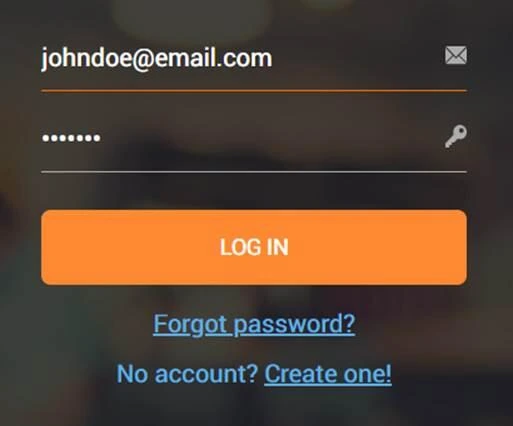
Step 1 — your usual credentials
Authenticator app — recommended. Works even with no signal, and codes refresh every 30 seconds. Email code needs nothing installed, but takes a little longer to arrive.
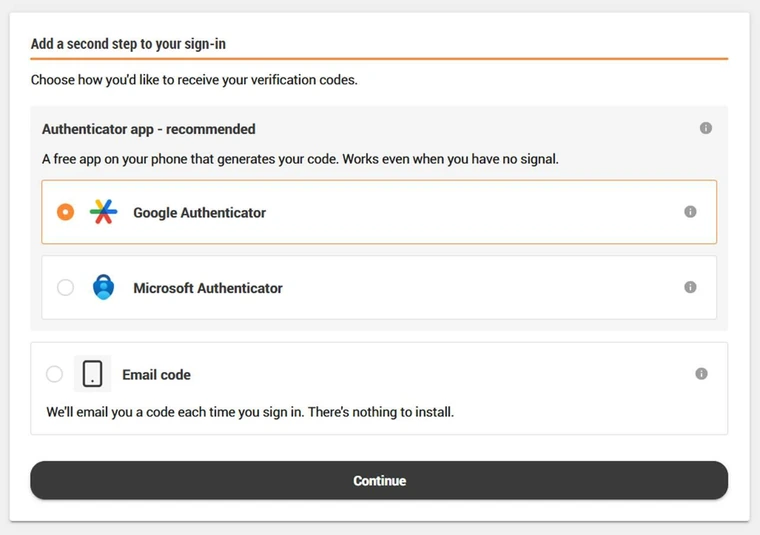
Step 3 — choose your verification method
Setting up an authenticator app
Install the app
Google Authenticator or Microsoft Authenticator — both free, on your phone's app store.
Choose "Add account" in the app
Then scan the QR code shown on screen, or type in the setup key if you can't scan.
Enter the 6-digit code to confirm
Type the current code shown in the app, then confirm to finish setup.
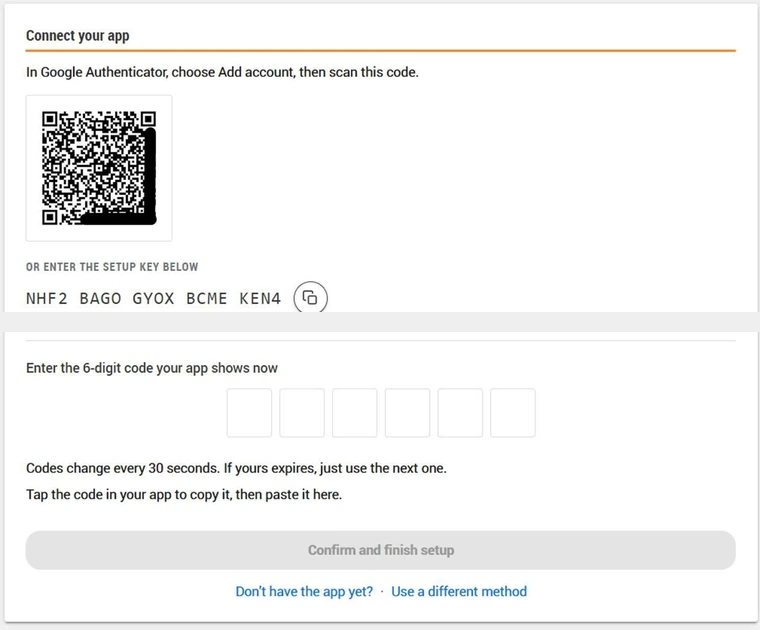
Scan once — the app remembers your account
Using an email code instead
Choose "Email code"
Instead of setting up an app.
Request a code
Open your registered inbox
Copy the code from the message you receive.
Enter it and submit
That completes verification for this sign-in.
Every sign-in after that
Enter your username and password
Enter the current code
From whichever method you set up — your authenticator app, or a freshly requested emailed code.
You're in
You never need to reconnect the app itself — just read its current code each time.
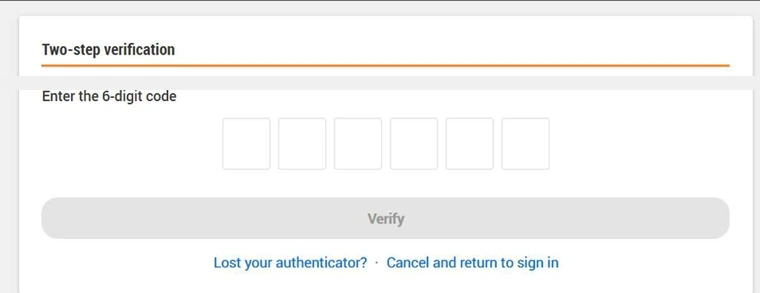
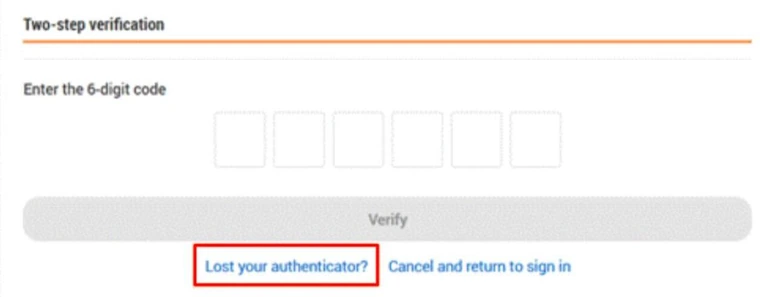
Shown at every sign-in once this is set up
You'll be asked for a code every time you sign in — not just the first time — including after a manual logout or a session timeout. That's by design: it protects your account on shared or borrowed computers rather than trusting a device that was verified once before.
Lost your phone, or can't access your authenticator?
Select "Lost your authenticator?"
It's on the verification screen itself.
Retrieve the reset code by email
Sent to your account's registered inbox.
Re-enroll an authenticator
Follow the prompts to connect a new app — no need to wait for an administrator, as long as you can still reach your registered inbox.
Self-service recovery via your registered email
Frequently asked questions
Yes. The verification step only appears after you submit a valid username and password — the login page itself stays the same. Complete that first step to see the setup or verification screen.
No. Your password only completes the first step. You still need to enter a verification code before you're let in.
Yes — even multiple times a day, and after a logout or session timeout. There's no "remember this device" period. You only set up your authenticator app once; after that you just read its current code each time.
Yes. The code goes to your registered inbox — it's just slower to arrive than a code generated on the spot by an authenticator app.
Codes from the authenticator app refresh every 30 seconds. If yours expired before you entered it, just enter the newest code shown in the app and try again.
No — this is easy to mix up. Google Authenticator (and Microsoft Authenticator) are just free apps that generate your verification codes. Your username and password still go through Helion Research directly; no Google or Microsoft account is involved.
Need a hand?
If anything on screen doesn't match this guide, or you run into trouble, reach out to your Helion Research project manager — or, as a back-up, email info@helionresearch.com — and we'll help you through it.